Upload a file
To initiate the process, users can click the New Files button, situated at the top right corner of the screen.

Clicking this button will open a side page, providing users with the capability to upload new assets into the database.
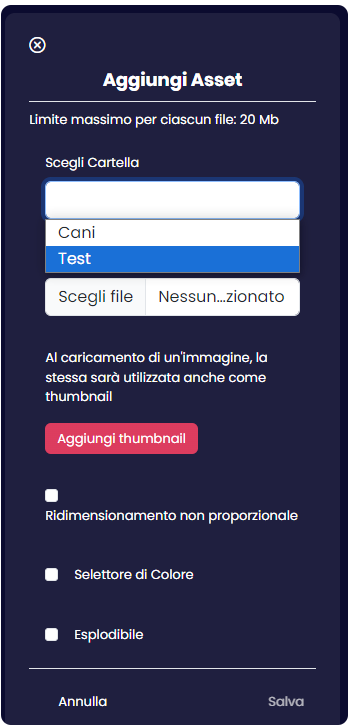
Choose a folder
Choose the folder into which the asset will be deposited from the existing list of folders.
Upload an Asset File
Choose the desired asset file for upload. Currently, supported file formats for upload include:
- Images: .jpg and .png
- Videos: .mp4
- 3D Models: .GLB
- Documents: PDF
Choose a thumbnail
While not obligatory, selecting a thumbnail is highly recommended to facilitate faster asset identification. In this section, users have the option to upload an image to serve as the thumbnail for the file. If the file itself is already an image, the same image will be automatically used as the thumbnail. The option to toggle thumbnail upload is available for cases where a thumbnail is not necessary or desired.
Parameters
When uploading a file, you can choose to check one of the following parameters, depending on whether the file includes any of these properties:
- Non-proportional scaling: if you choose to downsize the asset while maintaining its size
- Color selector: whether the asset involves multiple types of colors (in the case of a 3D object)
- Explodable: if the asset involves its splitting into several parts (in the case of a 3D object).